
Images Tool
Add multiple images to the canvas
Introduction
This action allows users to add multiple images to the canvas by:
- Selecting multiple files.
- Drag & Drop multiple Images from the same application to the canvas.
- Drag & Drop multiple external Image to the canvas.
Once added, the images are rendered on a grid pattern where you can define the amount of columns to display, the elements are added as Image Nodes, ready for positioning, resizing, and collaboration.
This action supports various image formats: jpeg, gif & png. Ideal for visual references, diagrams, or creative content.
Dependencies
This action needs also registered on the Weave instance the following:
Usage
Import the Action
Start by importing the action:
import { WeaveImagesToolAction } from "@inditextech/weave-sdk";Register the Action
Then register the action on the Weave class instance.
const instance = new Weave({
  ...
  actions: [
    ...,
    new WeaveImagesToolAction(),
  ]
})
Setup the action trigger
Setup on a button or any element on the UI the user can interact with on the action event:
instance.triggerAction("imagesTool");Then select the images to upload, for example by showcasing a file select to the end user, and
when the user selects the images, then the tool is called, passing a images property with the
files metadata as WeaveImagesFile. You also define a function to upload each image separately
on uploadImageFunction that has the following signature: (file: File) => Promise<string>.
For example on a button on React:
import React from "react";
import { useWeave } from "@inditextech/weave-react";
import {
  WEAVE_IMAGES_TOOL_UPLOAD_TYPE,
  WeaveImagesToolActionTriggerParams,
  getImageSizeFromFile,
  getDownscaleRatio,
} from "@inditextech/weave-sdk";

const MyImagesToolTriggerComponent = () => {
  const inputFileRef = React.useRef<any>(null);
  const instance = useWeave((state) => state.instance);
  const [showSelectFiles, setShowSelectFiles] = React.useState<boolean>(false);

  React.useEffect(() => {
    if (showSelectFiles && inputFileRef.current) {
      inputFileRef.current.click();
      setShowSelectFiles(false);
    }
  }, [instance, showSelectFiles]);

  const handleUploadFiles = React.useCallback(
    async (files: Fi) => {
      const images: WeaveImagesFile[] = [];

      for (const file of files) {
        const imageId = uuidv4();
        const imageSize = await getImageSizeFromFile(file);
        const downscaleRatio = getDownscaleRatio(
          imageSize.width,
          imageSize.height,
        );

        images.push({
          file,
          width: imageSize.width,
          height: imageSize.height,
          downscaleRatio,
          imageId,
        });
      }

      const uploadImageFunction = async (file: File) => {
        // Upload file to you storage / this is dummy, just an example
        const imageURL = await uploadImage(file);
        return imageURL;
      };

      const onStartUploading = () => {
        console.log("started uploading images...");
      };

      const onFinishedUploading = () => {
        console.log("finished uploading images...");
      };

      instance.triggerAction<WeaveImagesToolActionTriggerParams, void>(
        "imagesTool",
        {
          type: WEAVE_IMAGES_TOOL_UPLOAD_TYPE.FILE,
          images,
          uploadImageFunction,
          onStartUploading,
          onFinishedUploading,
        },
      );
    },
    [instance],
  );

  return (
    <>
      <input
        type="file"
        accept="image/png,image/jpeg,image/webp"
        name="image"
        multiple
        ref={inputFileRef}
        className="hidden"
        onClick={() => {
          inputFileRef.current.value = null;
        }}
        onChange={(e) => {
          const files = e.target.files;
          if (files) {
            handleUploadFiles(Array.from(files));
          }
        }}
      />
      <button
        onClick={() => {
          setShowSelectFiles(true);
        }}
      >
        Images Tool
      </button>
    </>
  );
};
Trigger the action
Finally a final user trigger the UI element that launches the action.
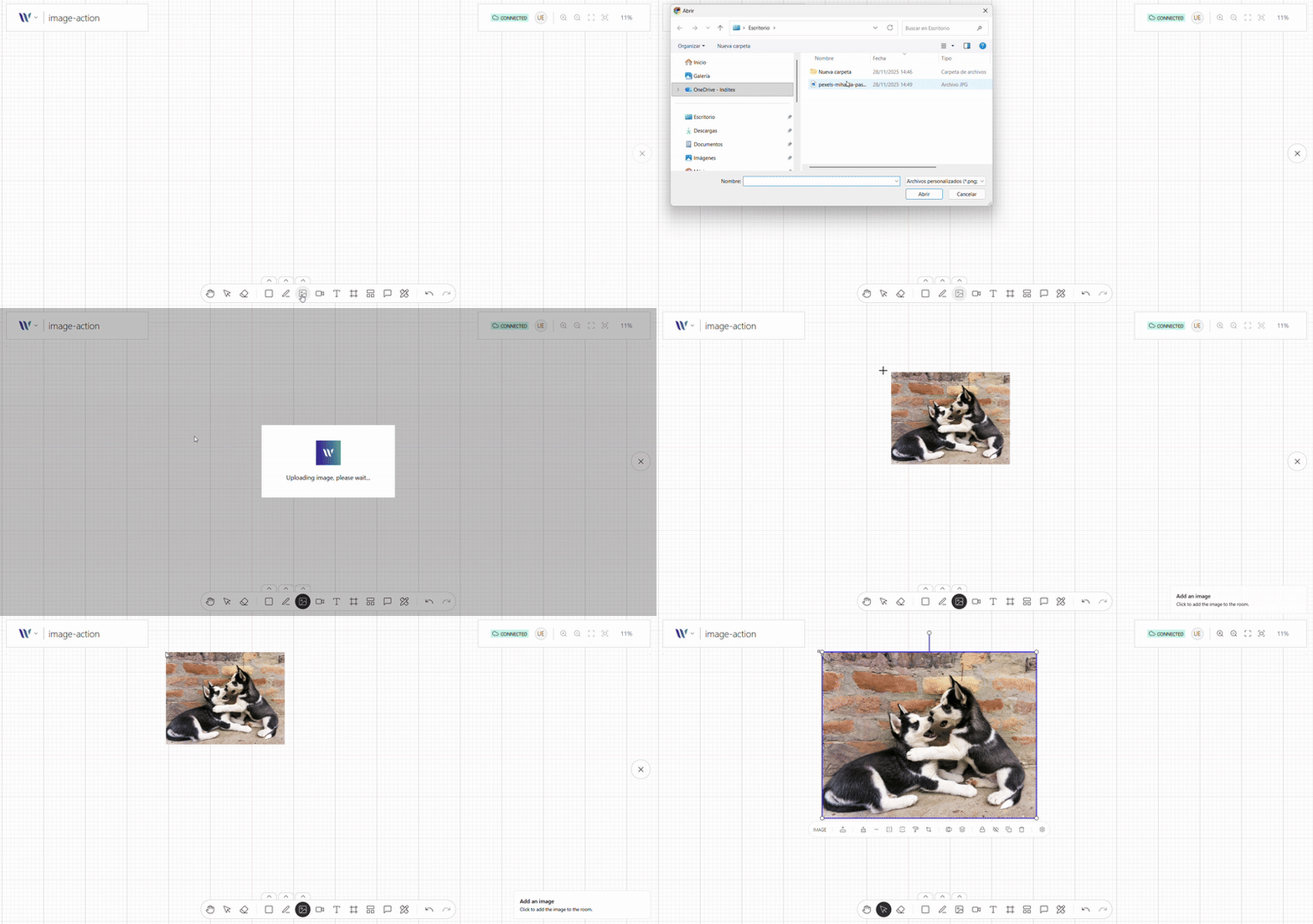
When active the user:
- Select the image to upload.
- Image is uploaded with the API the developer choses or has available.
- Once the image is uploaded, the user can click or touch on the canvas to place it.
Then the image is added to the canvas as a fully functional node—ready. This action integrates seamlessly with Weave.js's real-time state system, ensuring the new element appears instantly for all connected users.